

Pay By Link via SMS
Currently, you can share payment links with customers exclusively via email and other social media platforms like WhatsApp, Facebook, Instagram etc. To enhance the overall offerings, we have introduced an additional option for you to send payment links through SMS.
How it works:
Open new static link payment
- Select the Payments option from the top Main menu bar. The Payments menu bar displays, with the Pay by Link open by default.
- Click the New button. The Add New Invoice page displays.
Create a new payment link
- To send the payment link in SMS to your customer, you should check the SMS check box under the select channel.
- Click on the Open icon in the Outlet field. The dropdown list of options displays. Select the option you want from the dropdown field.
- In the Bill To section, type in the First and Last Names, and Payment link Order Reference in the appropriate fields.
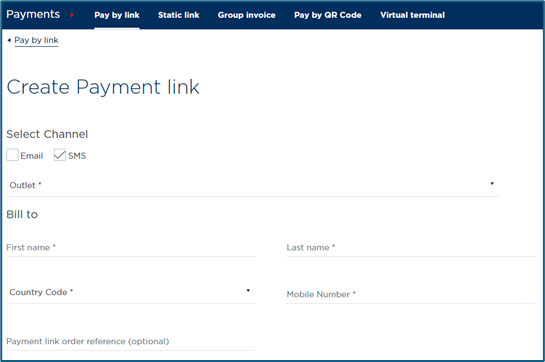
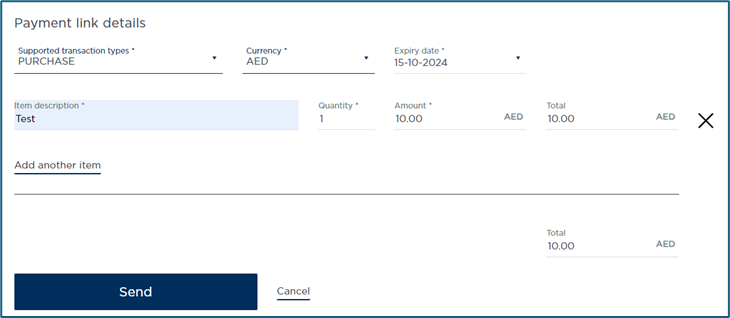
- In the Payment link details section, click on the Open icon in the Transaction type and Currency fields. The dropdown lists of available options display. Select the option you want from the appropriate dropdown field.
- Click in the Link Expiry Date field to display the calendar popup box. Navigate to and select the day you want as the payment link’s expiry date. The new day is displayed in the Link Expiry Date field.
- Note: use the Forwards and Backwards arrows to find the correct month. Type in the Item Description that the payment link is for, the Number of the item sold, and the item Amount, in the appropriate field.
- Do you want to add another item?
If yes, go to Step 8.
If no, go to Step 9. - Click the Add another item link, and repeat Steps 4 and 5 in the new item line.
- Once you are ready to send payment link via SMS, Click the Send button.
All email/SMS rules, security restrictions, and expiry controls apply to OneLink and SMS link flows.
Updated 8 months ago